For Government of Alberta Employees
Note: This procedure is also applicable to DFNA, Justice, OCYA, Alberta Courts, Ombudsman, Elections Alberta users.
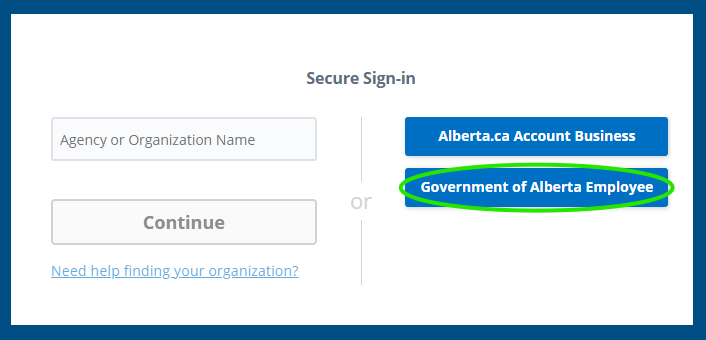
Login via Government of Alberta Employee
- Click the Government of Alberta Employee button on the Secure Sign-in page
- The Government of Alberta login page will be displayed
- Log in with your regular work credentials (that you use to log into your work systems)
For Federated Agency or Organization Users
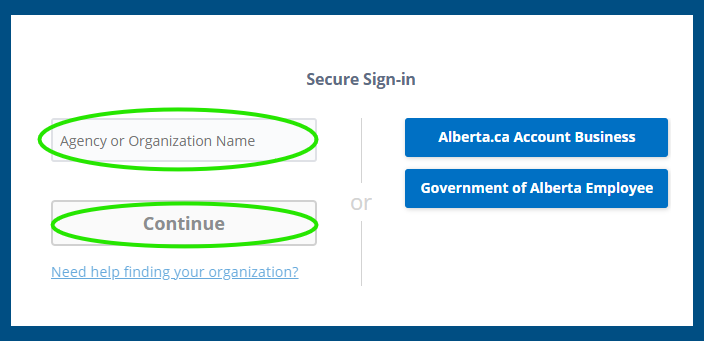
Login via Agency or Organization Name
- Choose Agency or Organization Name in Secure Sign-in page
- Enter your Organization Name (e.g. Royal Canadian Mounted Police, Edmonton Police Service, Calgary Police Service) and select from the list
- Click the Continue button
- Your Organization login page will be displayed
- Log in with your regular organization credentials (that you use to log into your work systems)
For Other Agent Accounts
For other users we require the use of Alberta.ca Business Accounts. Please see Alberta.ca Account for Business Use.
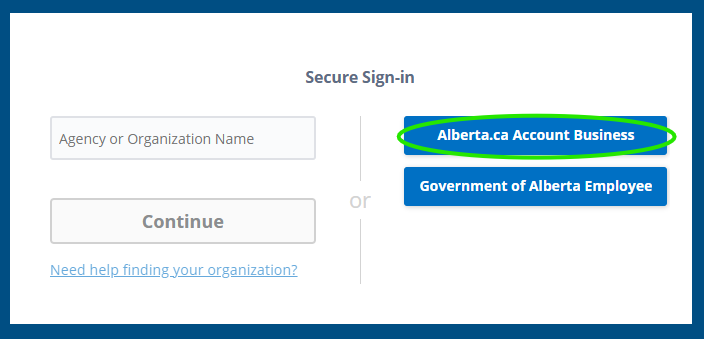
Login via Alberta.ca Account Business
- If you have not already set up an Alberta.ca Business Account, please see Creating an Alberta.ca Business Account
- Click on Alberta.ca Account Business in Secure Sign-in page
- The Alberta.ca login screen will be opened
- Enter your Alberta.ca Business account username or email address
- Click Continue button
- Enter your Alberta.ca password
- Click the Sign In button
- Upon first log in, a request for access will be created and will take up to 2 business days for approval
First Sign On (gaining access)
For GoA and Select Organizations
- You will be granted immediate access upon successful login
For Other Agent Accounts
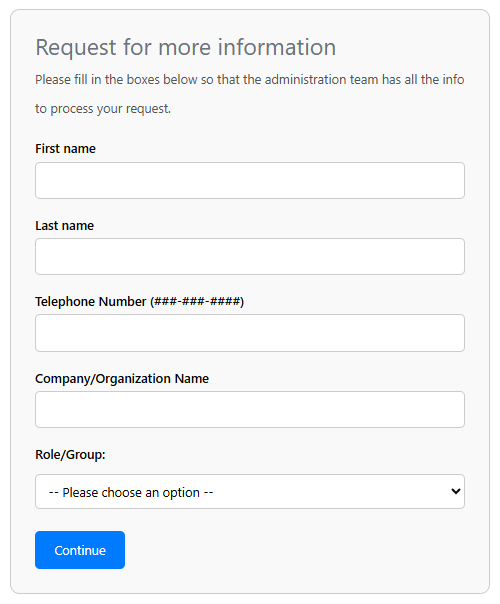
- You will need to request access upon login, complete the Request for more information form and click Continue
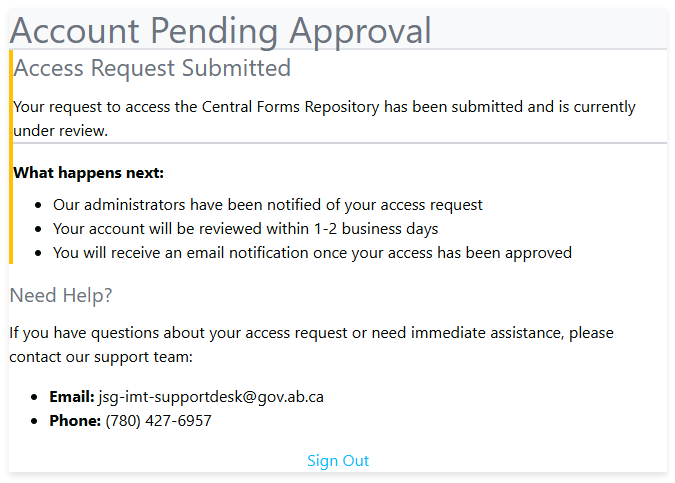
- Your request would be submitted for access approval, which may take up to 1-2 business days to be fulfilled
- Until your request is reviewed, you will see a page indicating that your request is pending approval
Creating an Alberta.ca Business Account
For Users with an existing Extern account
Please check if your Organization is an option in the Agency or Organization list on the Secure Sign-in page before proceeding, if available, use that option to log in.
More information about Creating and Alberta.ca Business account can be found here.
Steps to Setup Alberta.ca Business Account:
- Click on Alberta.ca Account Business from the Secure Sign-in page
- Create an account using your business/work email, and a unique password
- If your organization does not currently have an Alberta.ca Business account and you have the authority to create one, you can set it up during this process. For example, the business name might be “SAMPLE County Protective Services” or "ABC Funeral home"
- The creator of the "Business" will automatically become the admin and can manage members belonging to it
- Once your account and Business are setup you can log into CFR using this account by following the steps For Other Agent Accounts
- Upon first log in, a request for access will be created and will take up to 2 business days for approval
Still having issues?
If you are having issues using any of our Government of Alberta forms, please contact us at goa.forms@gov.ab.ca.